Test Suites Across Channels
A Folder lets you build a reusable test suite once and run it against many channels at the same time. Every test in the folder runs against every channel you select — a cross-product — so you can benchmark the identical suite across an LLM Chat agent, a phone agent, a Web Chat widget, and a Web Voice agent, then compare how each holds up.
When to use it
Section titled “When to use it”- You maintain one set of scenarios (greeting, booking, escalation, refund…) and want to run them against several agents or several deployments of the same agent.
- You want an apples-to-apples comparison across connection types: does the booking test pass on chat but fail on voice?
- You are regression-testing a change across every channel in a project at once.
Build the suite
Section titled “Build the suite”-
Create a Folder
In a project, create a channel and choose the Folder adapter. A folder is not an agent — it holds tests, not a connection.
-
Add tests to the folder
Add the scenarios you want in your suite, exactly as you would for any channel. These tests define what gets run; the target channels define where.
-
Open the Suite Runner
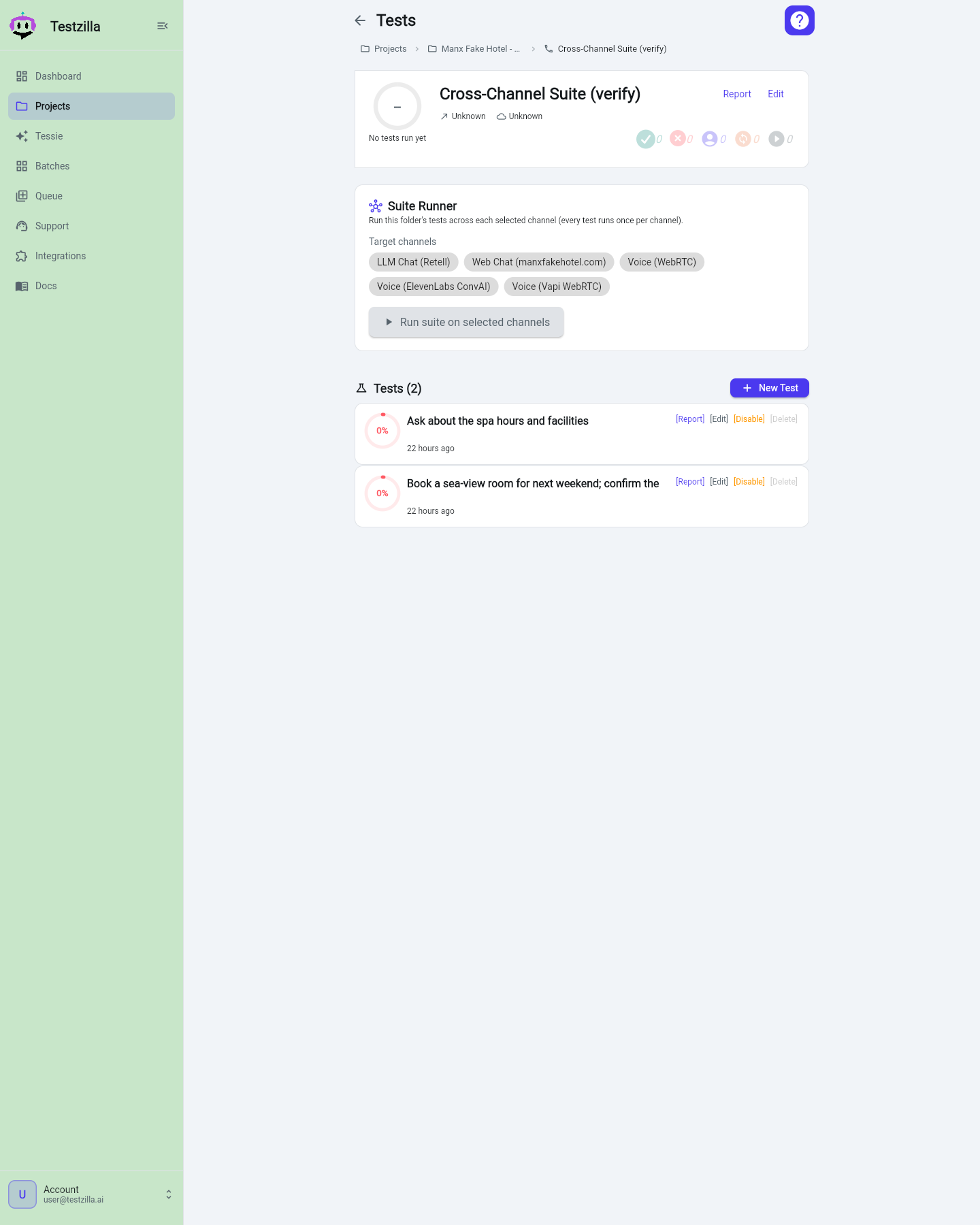
On the folder’s page, the Suite Runner panel lists the other channels in the project as selectable chips under Target channels. Pick the channels you want to benchmark against.
-
Run the suite
Click Run suite on selected channels. The button shows the total number of runs it will start — every test once per selected channel (for example, 5 tests across 3 channels = 15 runs). Track them on the Queue page.
Reading the results
Section titled “Reading the results”Each run is attributed to the channel it actually ran against, not to the folder. So a folder’s booking test that ran against your voice channel shows up under that voice channel’s results and counts toward its pass rate. This is what makes the comparison meaningful: each channel’s scores reflect only the tests that ran on it.