Test by channel
Quickstart by UI
This is the hands-on, click-through path: you build everything yourself in the web app at app.testzilla.ai, one screen at a time. No code, no assistant driving for you.
If you would rather describe what you want in plain language and have Testzilla build it for you, use the Quickstart (no code) with the TZ Console assistant instead. Both land in the same place; this page is for people who want to drive the UI themselves.
The model
Section titled “The model”Testzilla organises everything in a fixed hierarchy:
Project -> Channel -> Test -> Run -> Result.
- Project — a container that groups everything you test for one agent or product.
- Channel — a connection to the agent under test. Its connection type (phone, LLM Chat, Web Chat, or Web Voice) decides which fields you fill in.
- Test — a plain-English scenario the AI tester runs against a channel.
You will build one of each, in that order, then run it.
Walkthrough
Section titled “Walkthrough”-
Sign up and land on the Dashboard
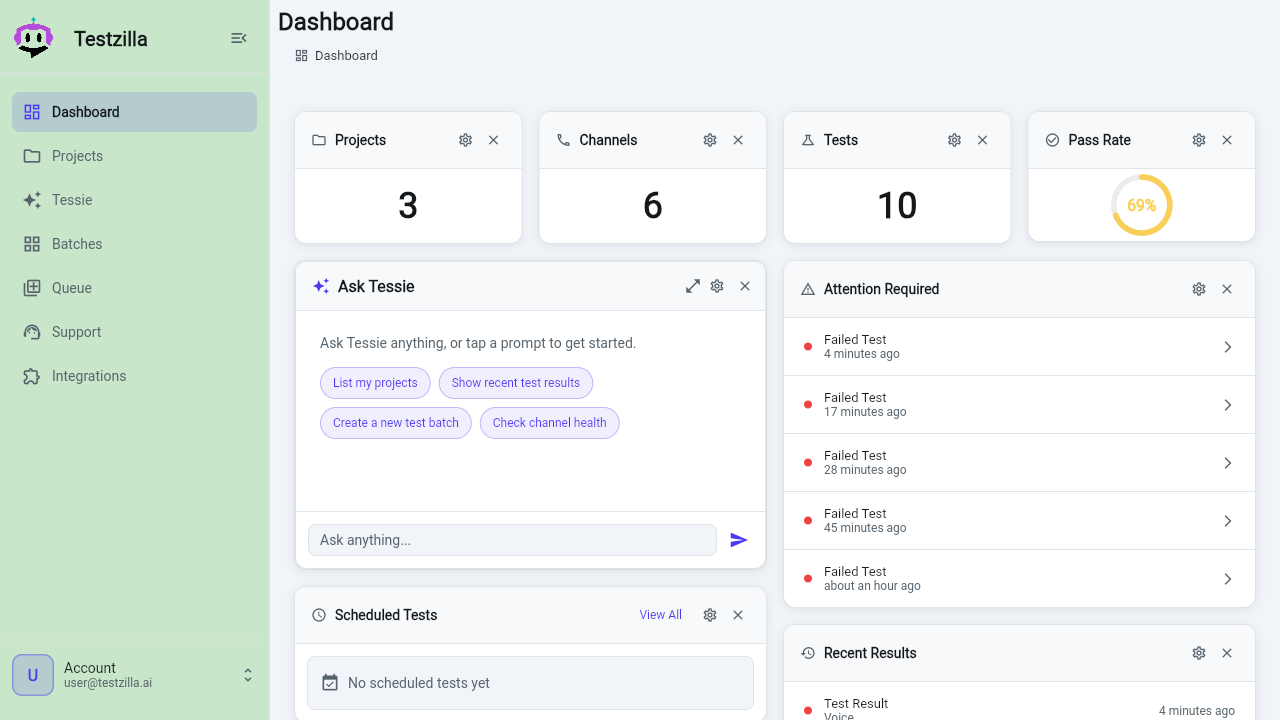
Sign up or log in at app.testzilla.ai. The left nav gives you Dashboard, Projects, TZ Console, Batches, Queue, Support, Integrations, and Admin. A new workspace stays free until your first test run, so you can build the whole thing before a plan is required (see subscriptions and the run gate).
-
Create a Project
Open Projects from the left nav and click New Project. Give it a clear name — usually the agent or product it covers, e.g. “Acme Support Line” — and Save. Optionally set a shared project prompt that every channel and test under it can reuse with the
{{project_prompt}}token. Full detail: Creating Projects.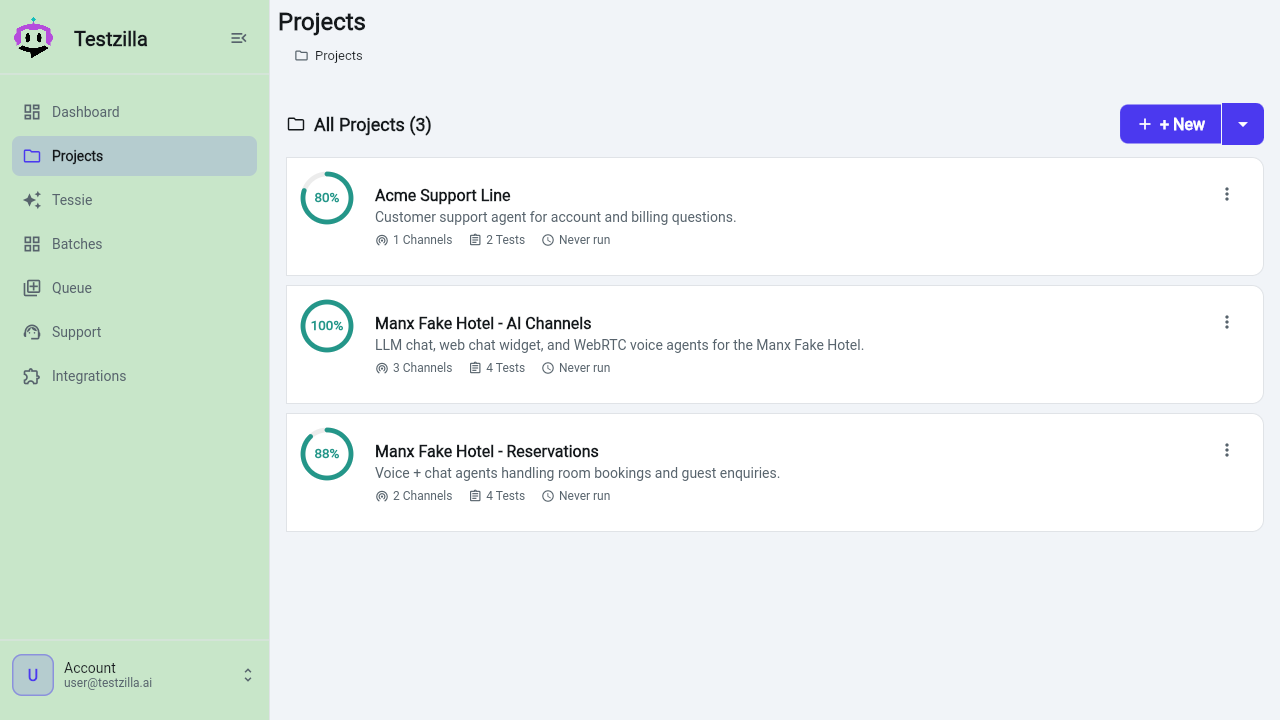
-
Connect a Channel
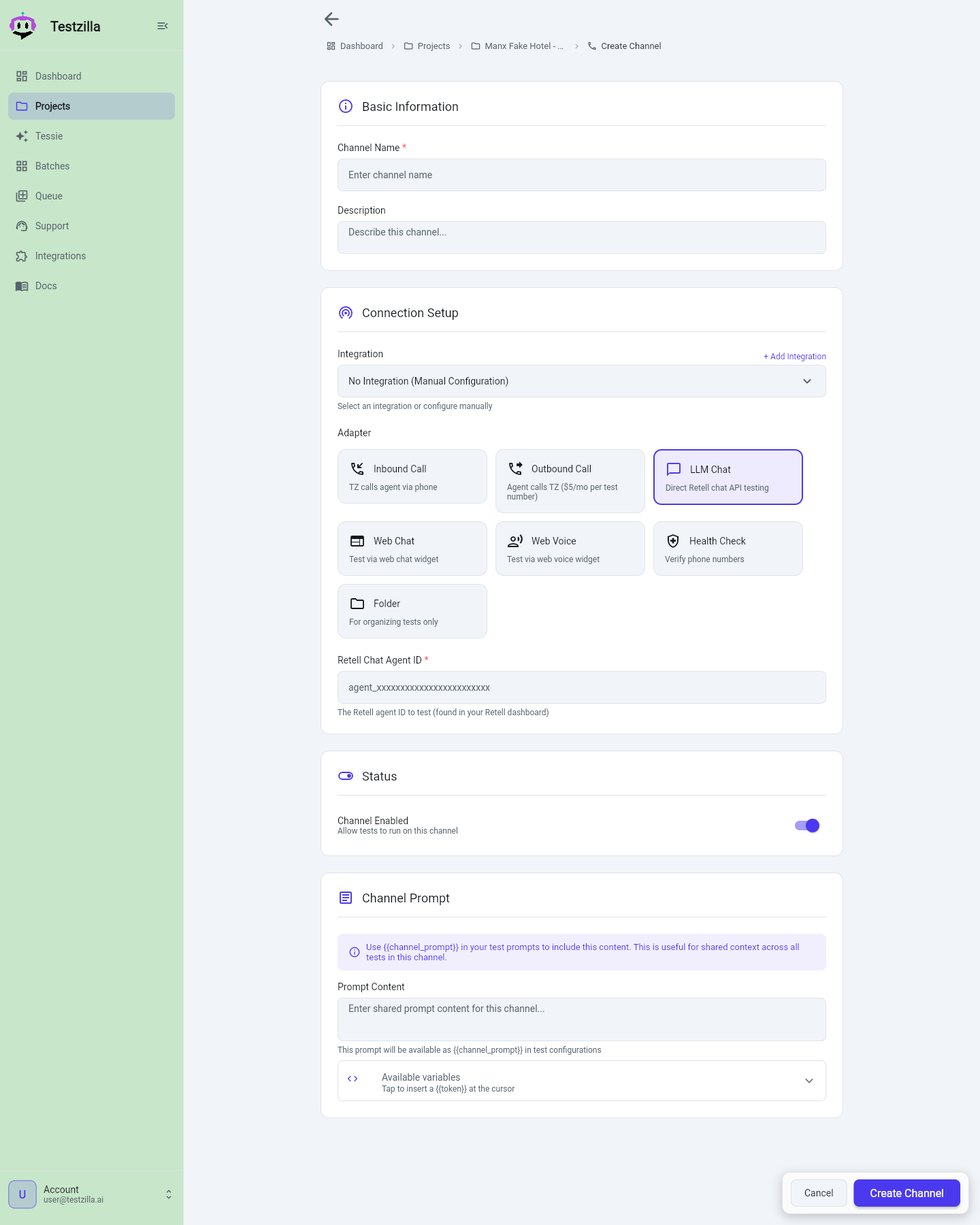
Open your new project and click + Channel (or New Channel in the channel list). The first choice is the Adapter, and it sets every other field on the form:
Adapter What it tests Inbound Call Testzilla dials in to your agent’s phone number (Retell or VAPI) LLM Chat Your Retell chat agent directly, over text Web Chat A chat widget on a live website, driven by a browser Web Voice A browser WebRTC voice call with a spoken tester Then paste the agent config that adapter needs — for example a Retell Chat Agent ID for LLM Chat, or a Chat URL plus Widget Vendor for Web Chat. Each connection type’s exact fields are in Creating Channels. Save and the channel appears under the project.
-
Author a Test in plain English
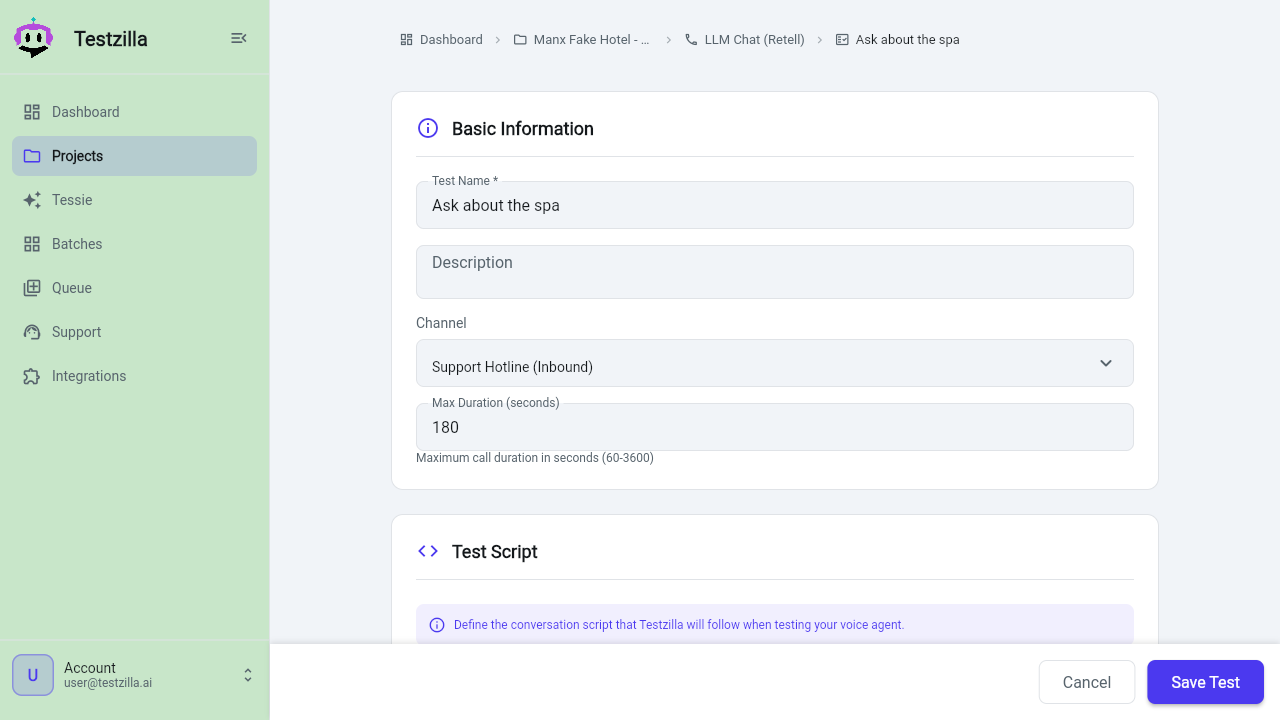
Open the channel and click + Test (or New Test). The test form asks two plain-language questions:
- What should the tester do? — describe the scenario, turn by turn, e.g. “Caller asks to book a haircut for Saturday afternoon. The agent must confirm the day and time, and must not ask for a card number.” In a hurry, click Use a template for a starter script to edit.
- What counts as passing? — state the pass criteria the grader checks against the finished transcript, e.g. “confirms a date and time” and “never asks for payment details”. Keep them concrete and checkable.
The common path stops there. Expand Advanced options to set who speaks first, a max call length, or prompt tokens. Save. Full detail: Creating Tests.
-
Run it
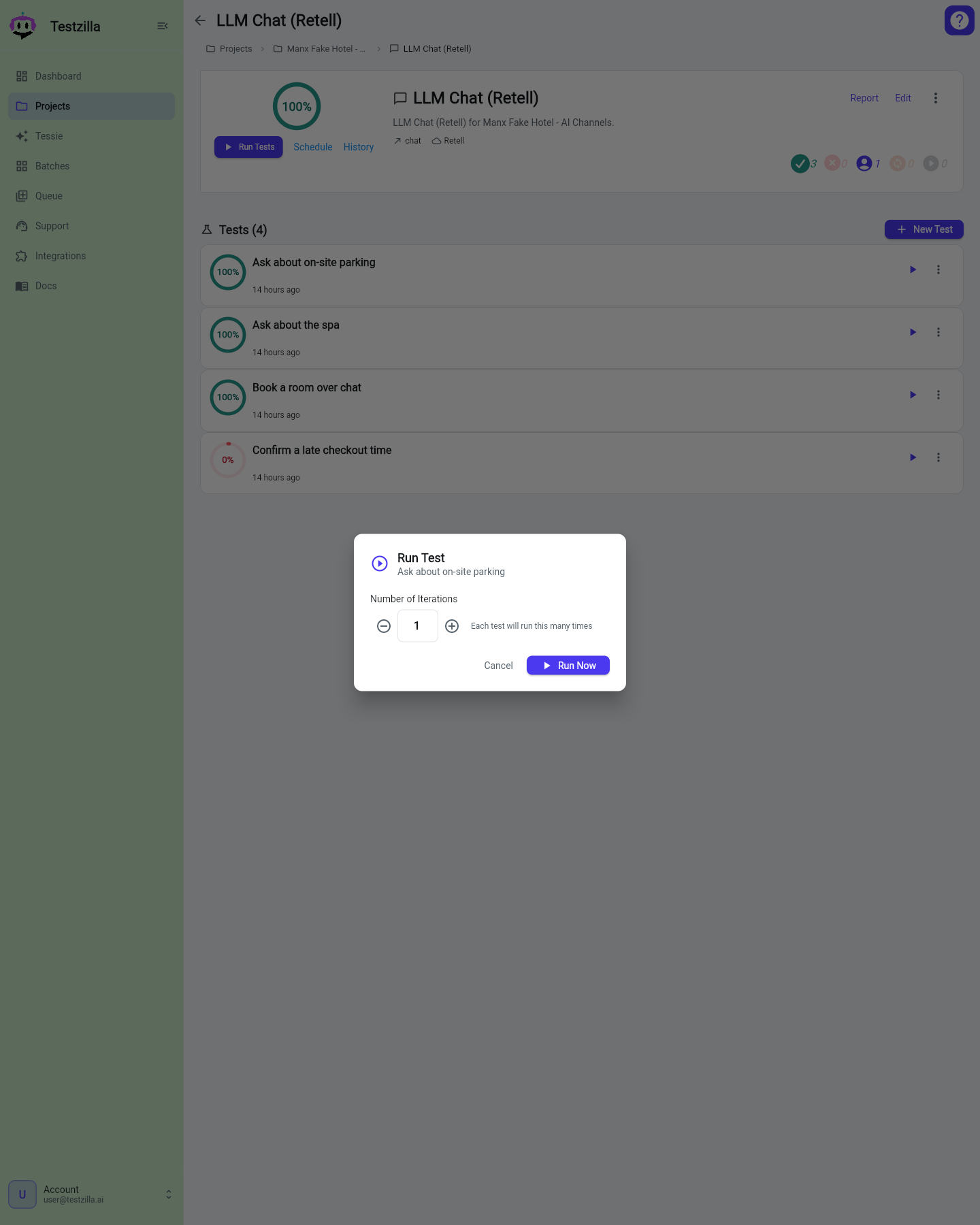
Pick the test (or the channel, or the whole project) and click Run. Choose how many iterations to run, and optionally schedule it for later. Track in-progress runs on the Queue page. This first billable run is where a plan is required.
-
Read the result
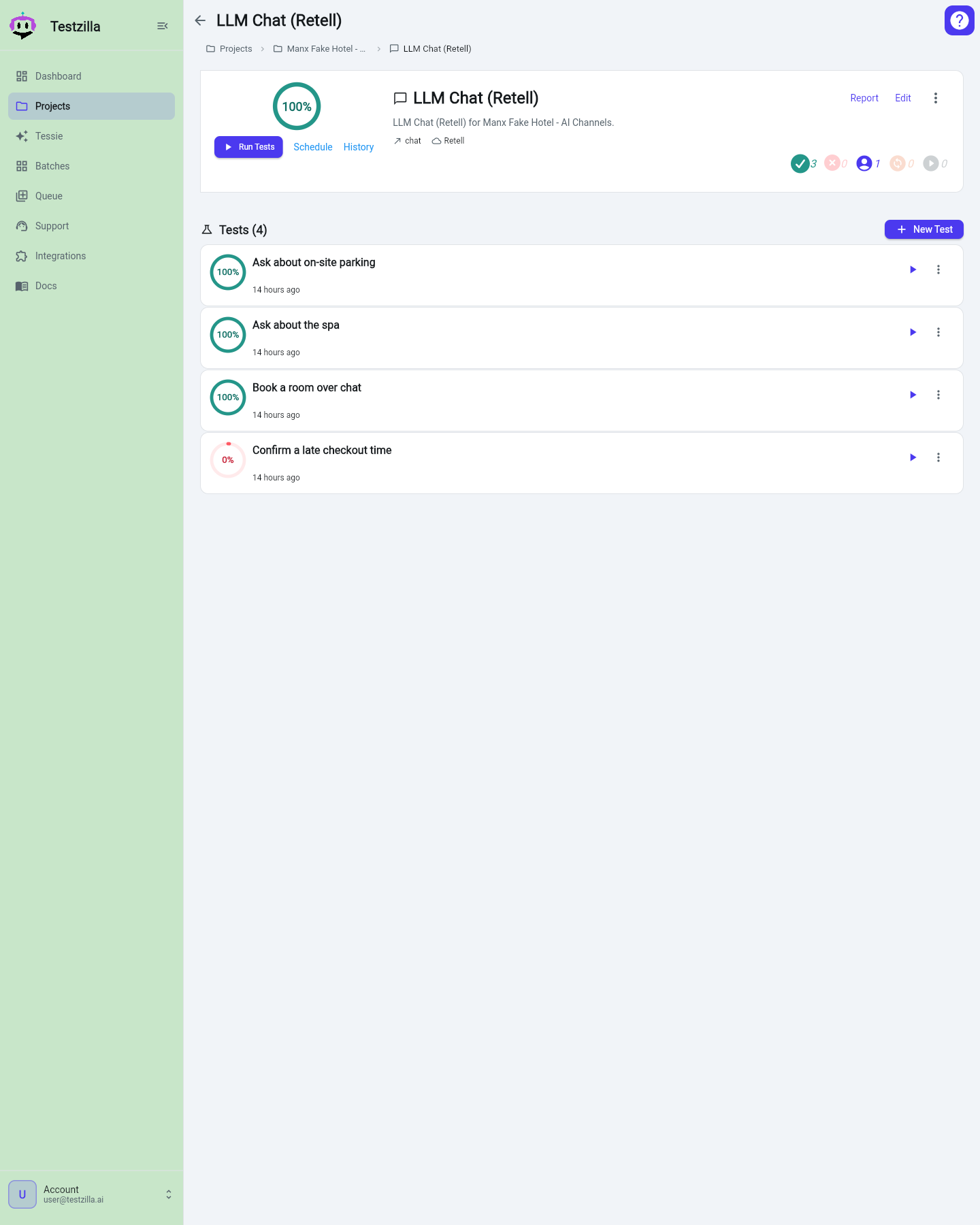
When the run finishes, open the result. You get a verdict banner (PASSED, FAILED, or UNCERTAIN), a transcript, a score, a two-column analysis of why it passed or failed, and the data collected during the run. A failed run also shows a Suggested fix callout directly under the banner. Every section has a Copy button, and Web Chat runs show a richer view with a per-turn transcript and screenshot gallery.
Your Dashboard rolls these up with widgets for Projects / Channels / Tests counts, Pass Rate, Attention Required, Recent Results, and Scheduled Tests.
Next steps
Section titled “Next steps”Prefer the assistant?
Quickstart (no code) drives the same steps for you through TZ Console.
Run a suite across channels
Benchmark the same tests across every channel at once.
Automate it
Integrate via API for CI, or via MCP to drive Testzilla from an AI agent.